Hosted Desktop: How to Login on an iPad
Table of Contents
- Key Points
- Detailed Process
- Recorded Example
Key Points
Step 1.
Make sure you have the DUO app (authenticator) on your phone and the Microsoft Remote Desktop app downloaded on your ipad.
Step 2.
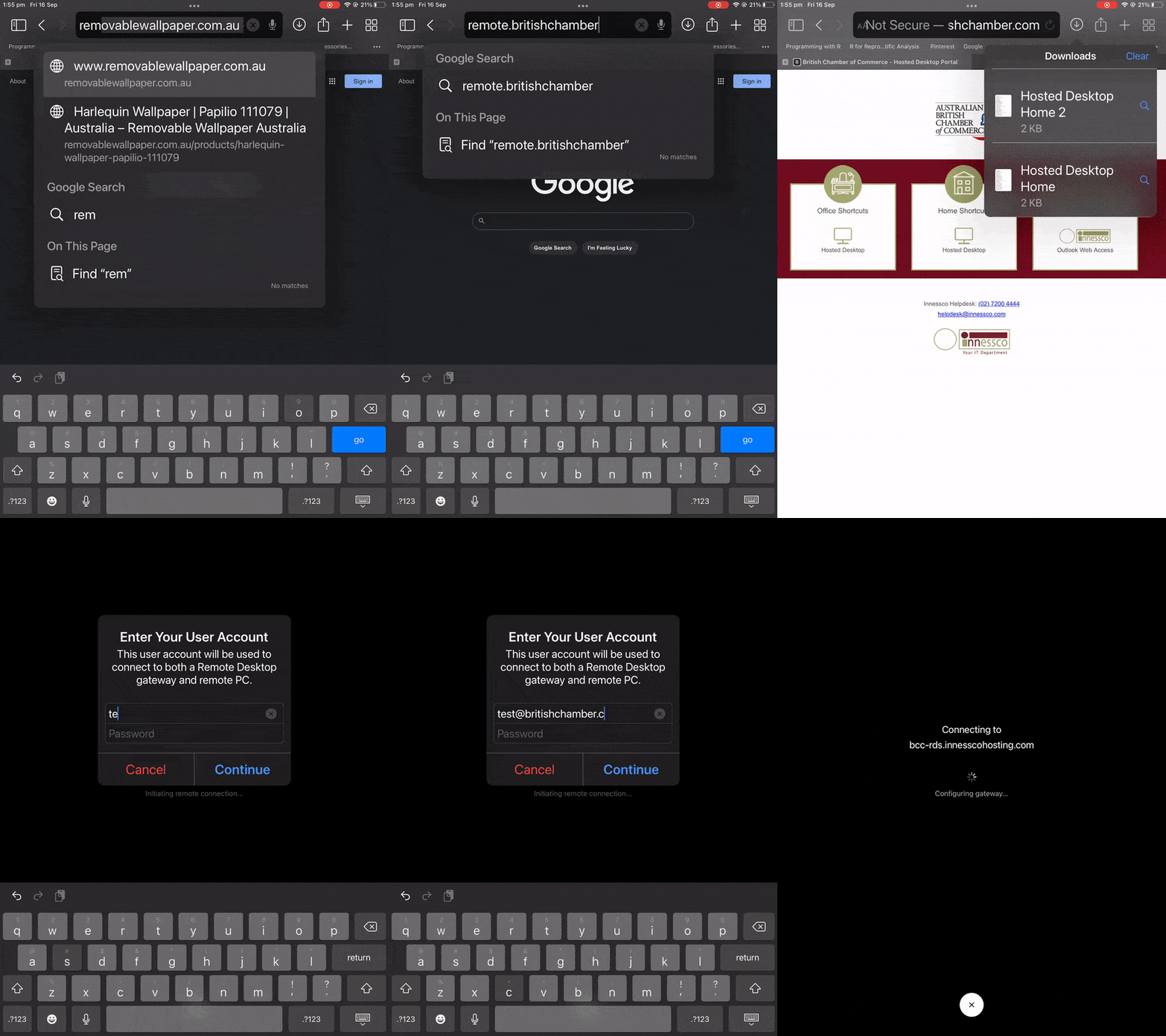
Open your browser on the iPad, type 'remote.yourcompany.com' in the address bar (at the top). Click enter.
Step 3.
Your company's hosted desktop remote page will open. Tap and hold the "Hosted Desktop" icon until the menu appears and choose "Download Linked File".
Step 4.
Click on the downloaded link, which should open your Microsoft Remote Desktop app.
Step 5.
Enter your user email address and password.
Step 6.
Your DUO app (on your phone) will require you to approve the sign in.
You are now signed into your hosted desktop.
Detailed Process
Step 1.
Make sure you have the DUO app (authenticator) on your phone and the Microsoft Remote Desktop app downloaded on your ipad.


Step 2.
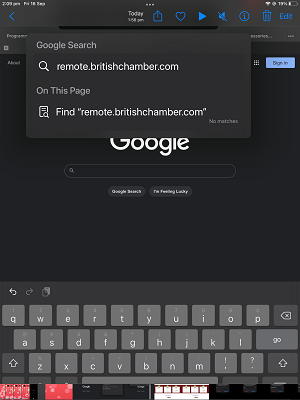
Open your browser on the iPad, type 'remote.yourcompany.com' in the address bar (at the top). Click enter.
Step 3.
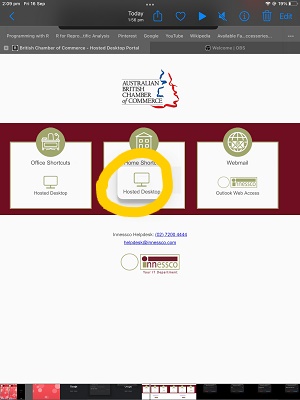
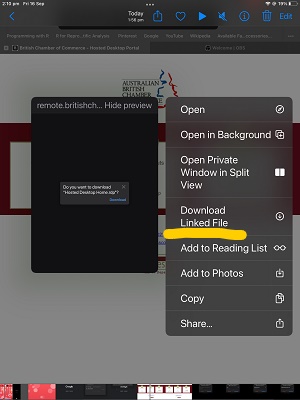
Your company's hosted desktop remote page will open. Tap and hold the "Hosted Desktop" icon until the menu appears and choose "Download Linked File".
Step 4.
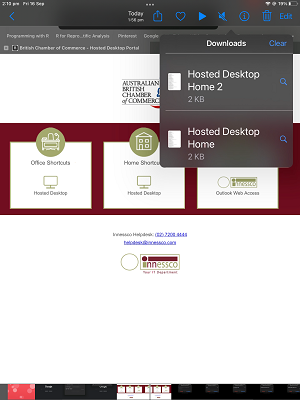
Click on the downloaded link, which should open your Microsoft Remote Desktop app.
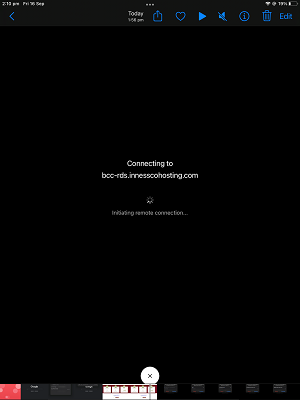
Step 5.
Enter your user email address and password.
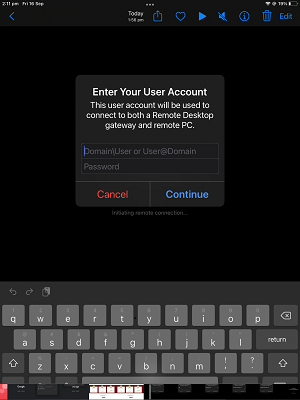
Step 6.
Your DUO app (on your phone) will require you to approve the sign in.
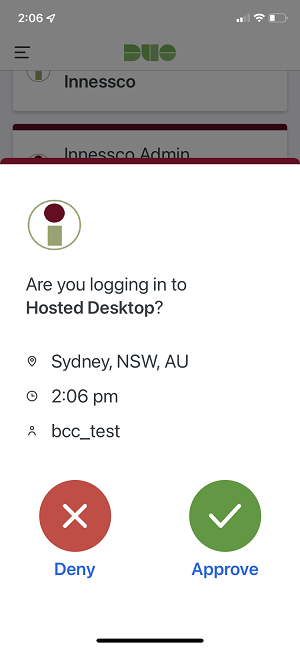
You are now signed into your hosted desktop.
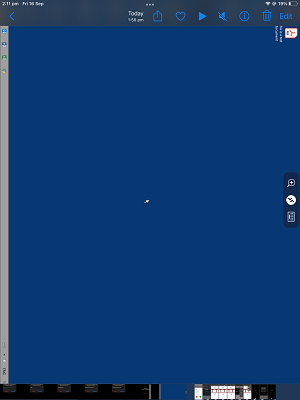
Recorded Example
Note: this video may automatically loop
Was this article helpful?
That’s Great!
Thank you for your feedback
Sorry! We couldn't be helpful
Thank you for your feedback
Feedback sent
We appreciate your effort and will try to fix the article