Cloud PC: Login from Home Mac
Table of Contents
- Key Points
- Detailed Process
Key Points
macOS version 10.14 or later is requiredStep 1.
Open the App store and searched for Windows APP. Click on get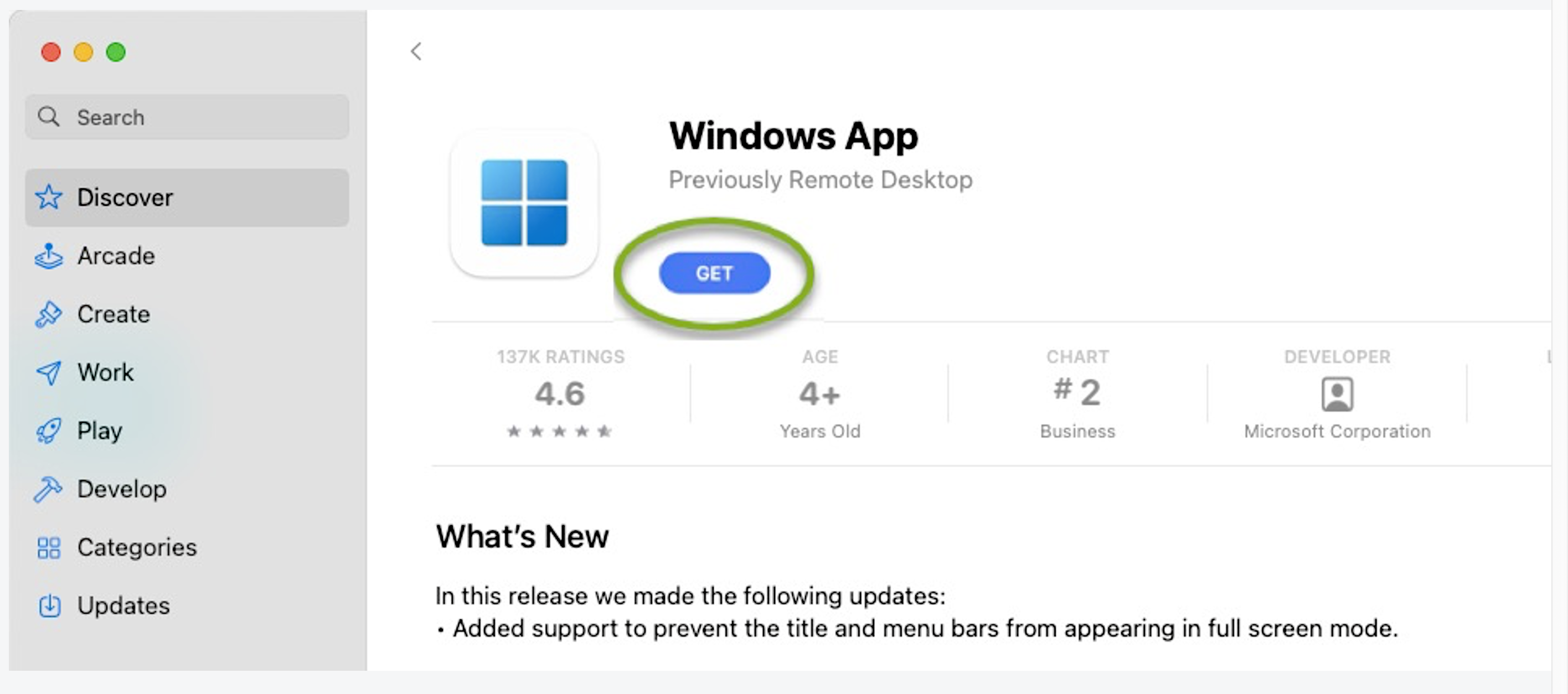
Step 2.
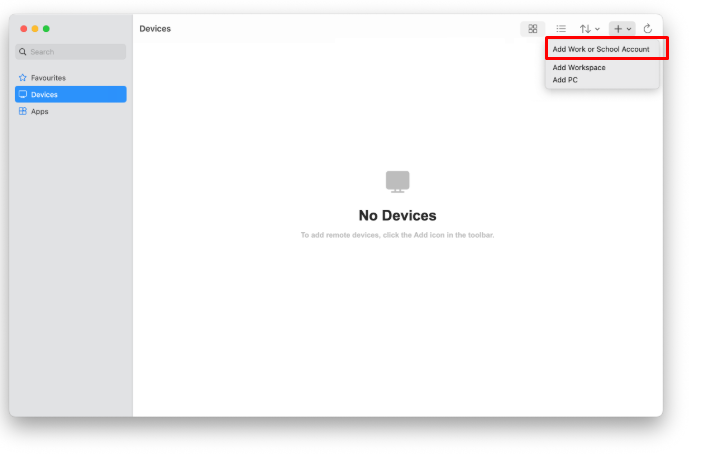
click "+" then "Add Work or School Account" and follow the prompts.
Detailed Process
Step 1.
Open a browser and type "windows.cloud.microsoft.com".

Step 2.
Sign in with your email and password.
If you have multiple Microsoft accounts choose ‘work or school account’.

Step 3.
From this page, you can either open your Cloud PC in the browser by clicking "Connect with > Browser" or click on Connect with > Desktop app to open it in Windows App. If you do not have Windows App, you will be prompted to download it.
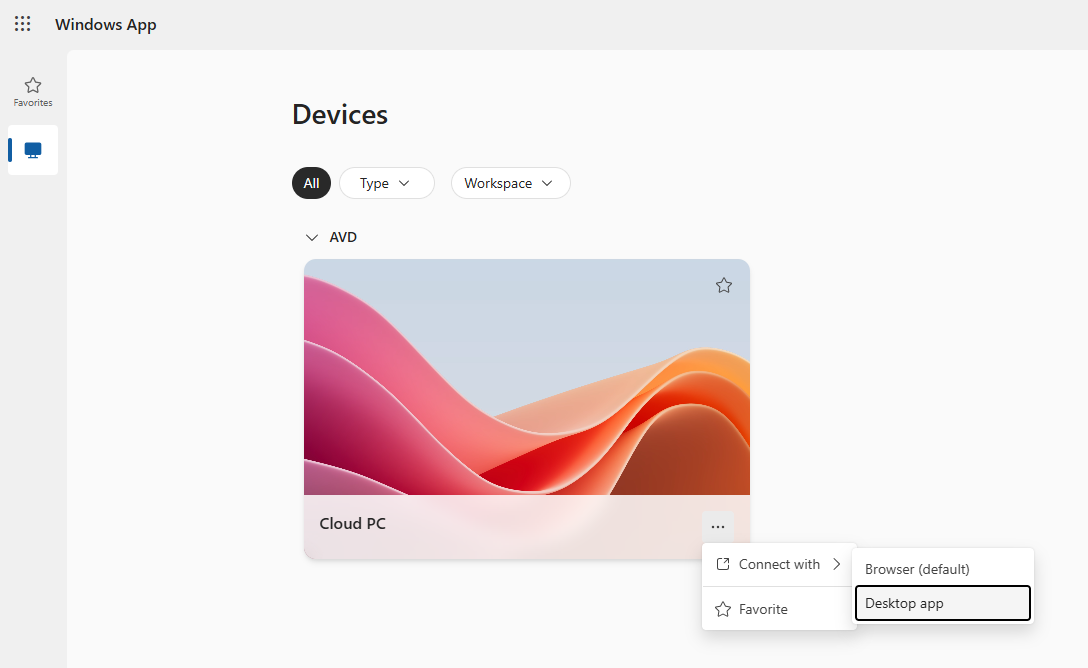
Click on the down arrow below the Home icon on the top left corner to install the "Windows App" application.
Step 4.
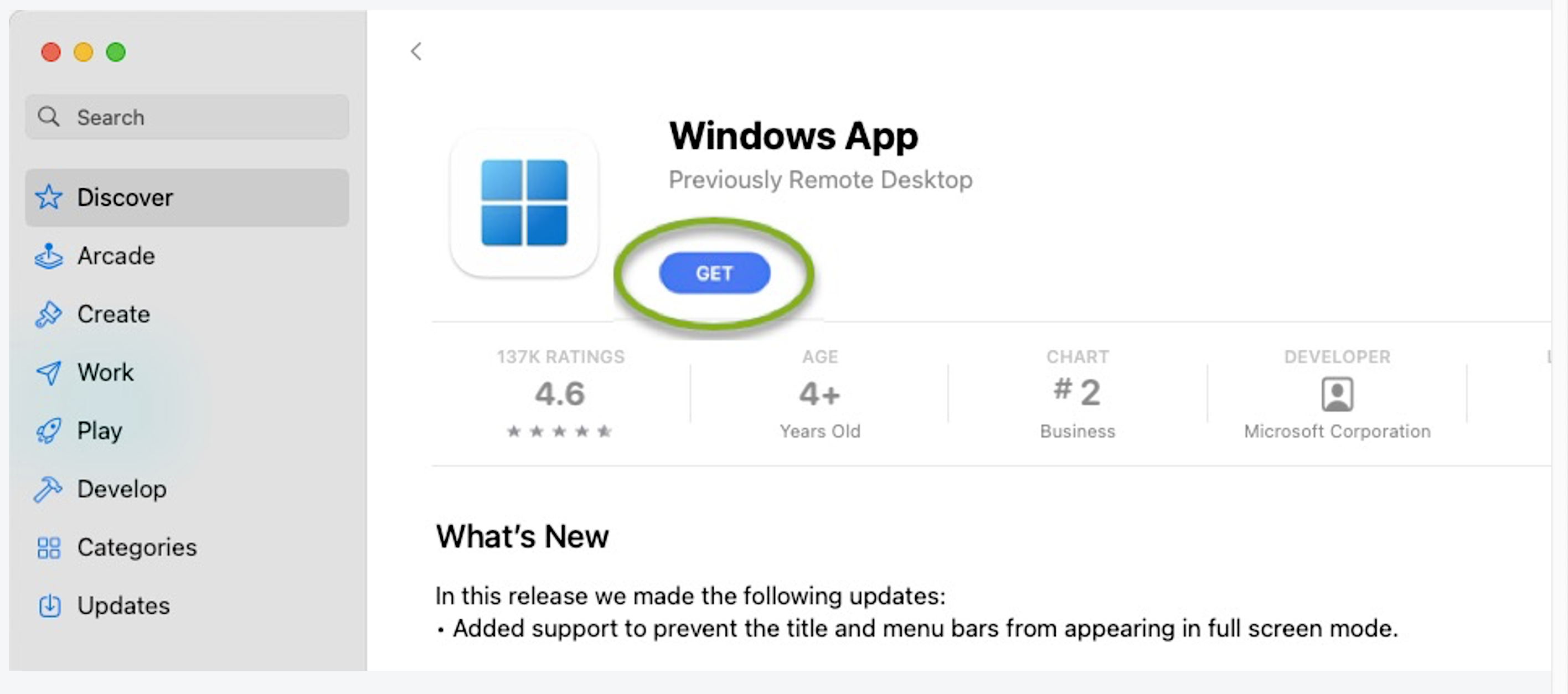
Click "Go to Mac App Store" and install the Windows app on your Mac.
Step 5.
Once you have installed the "Windows App" application, the setup may require extra steps. Copy the "Get subscription URL" link from the website. In the Remote Desktop application, click "+" then "workspace" and follow the prompts.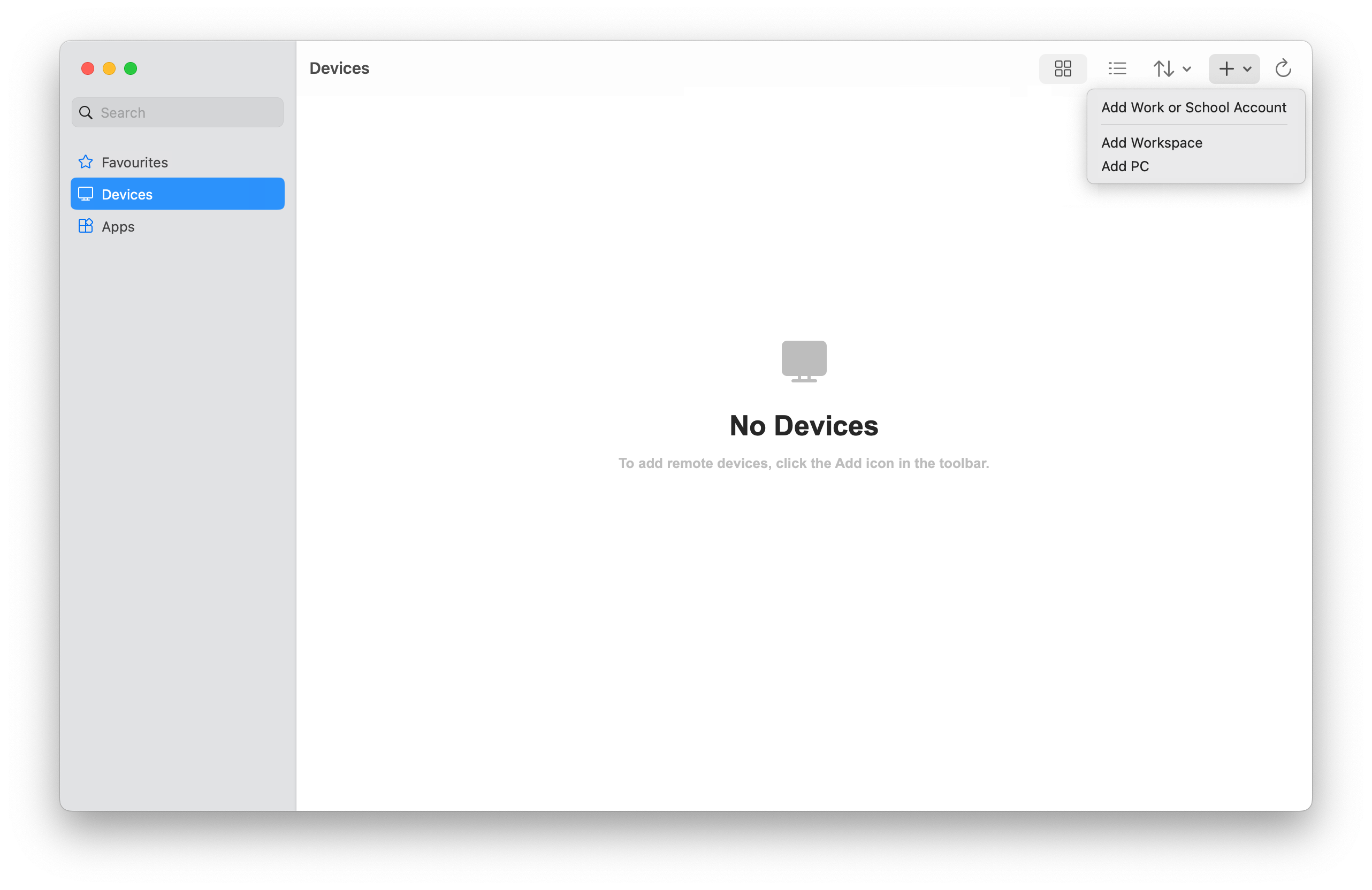
Was this article helpful?
That’s Great!
Thank you for your feedback
Sorry! We couldn't be helpful
Thank you for your feedback
Feedback sent
We appreciate your effort and will try to fix the article