Cloud PC: How to Login on an iPad
Table of Contents
- Key Points
- Detailed Process
- Recorded Example
Key Points
Step 1.
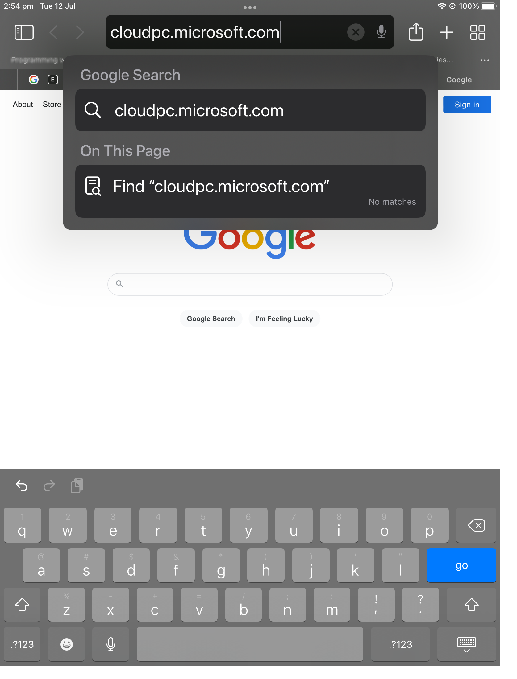
Open your browser on the iPad and navigate to "cloudpc.microsoft.com"
Step 2.
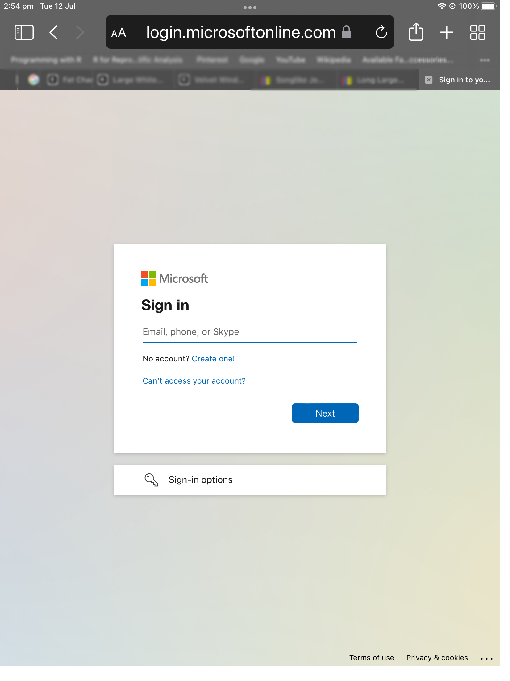
Sign in with your email and password.
If you have multiple Microsoft accounts choose 'work or school account'.
Step 3.
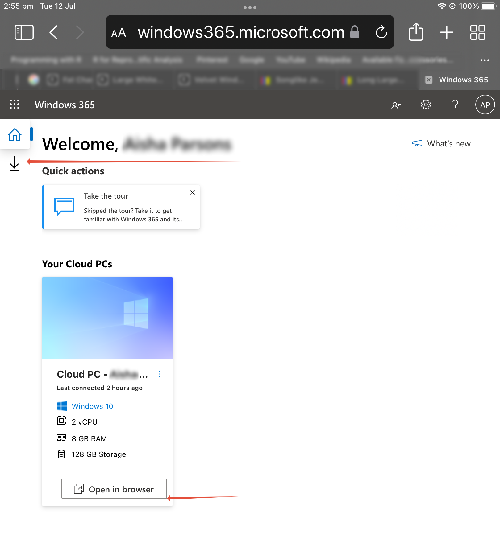
You can open your Cloud PC in the browser. You can download the Remote Desktop app onto your iPad via the download menu item (down arrow) located just underneath the Home menu (top left corner of screen).
Step 4.
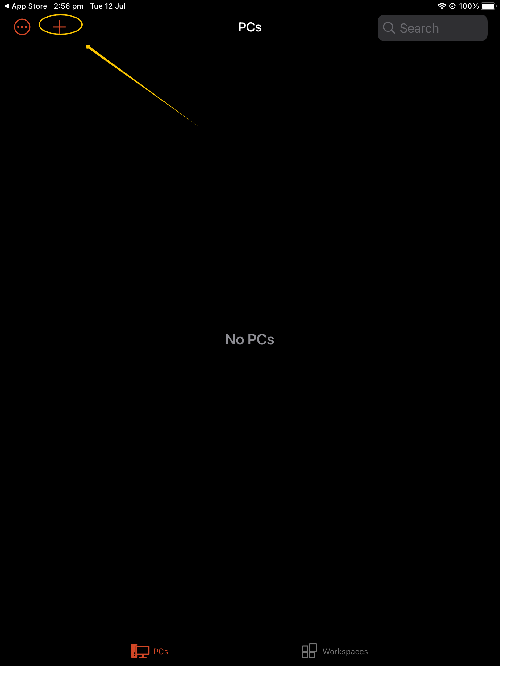
Once the remote app is downloaded navigate to the upper left side and click the plus symbol. Choose "Add Workspace".
Step 5.
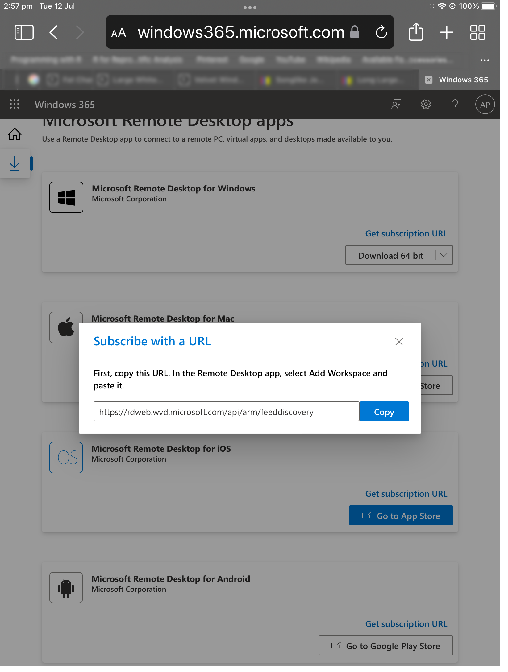
Go back to your browser, select "Get subscription URL", copy the address, paste into your app and choose 'Next'.
Step 7.
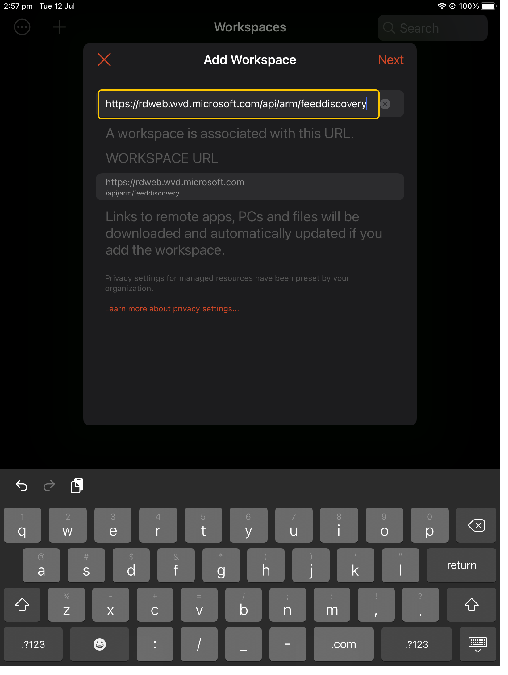
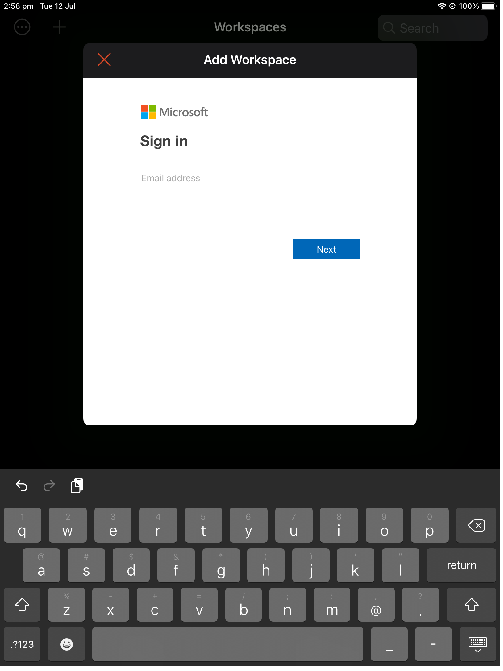
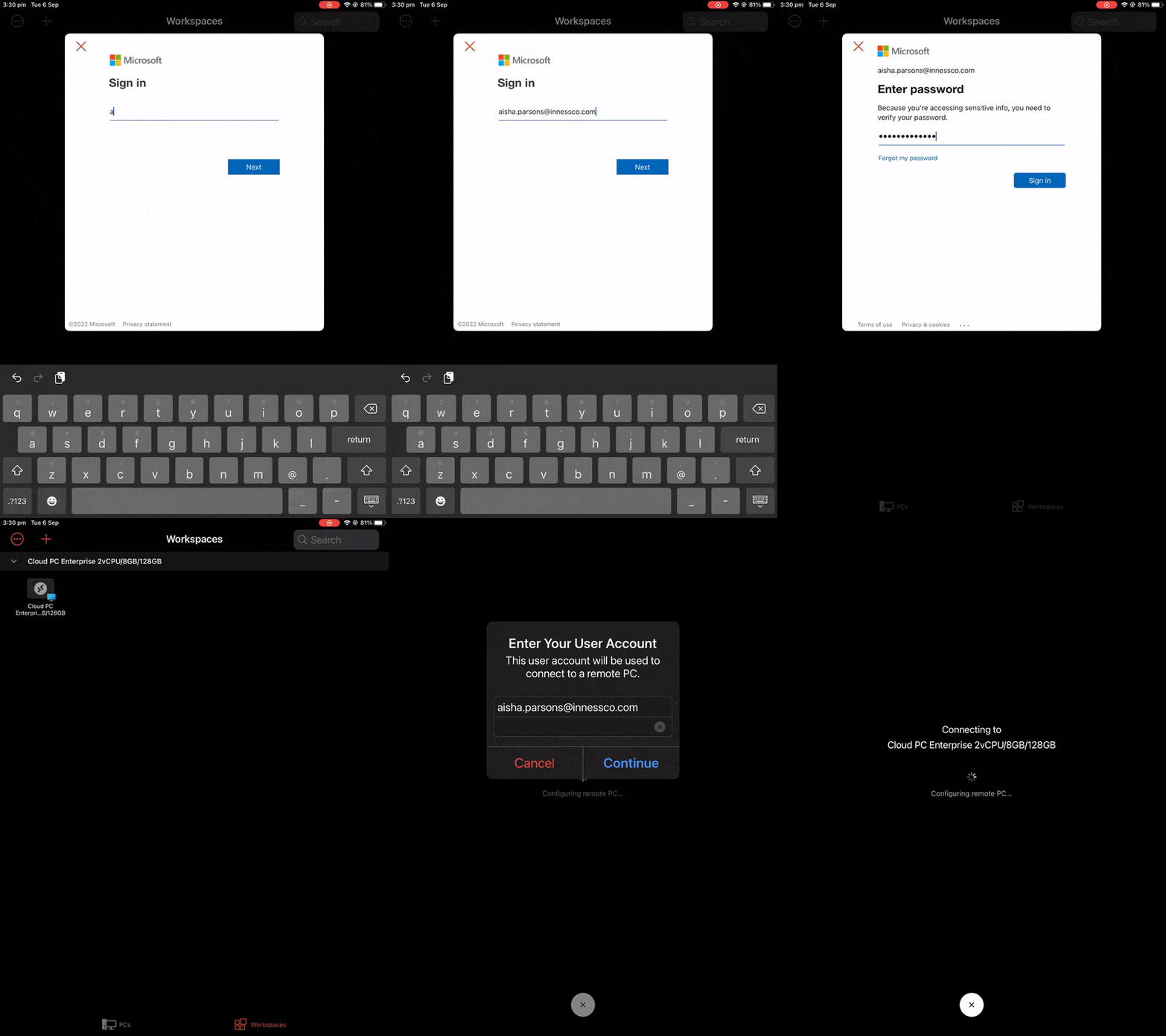
You will be redirected to a Microsoft sign in page. Sign in and now your workspace will be set up in the Remote Desktop app.
Step 8.
Click the Cloud PC icon, sign in again. You will now be able to access your Cloud PC.
Detailed Process
Step 1.
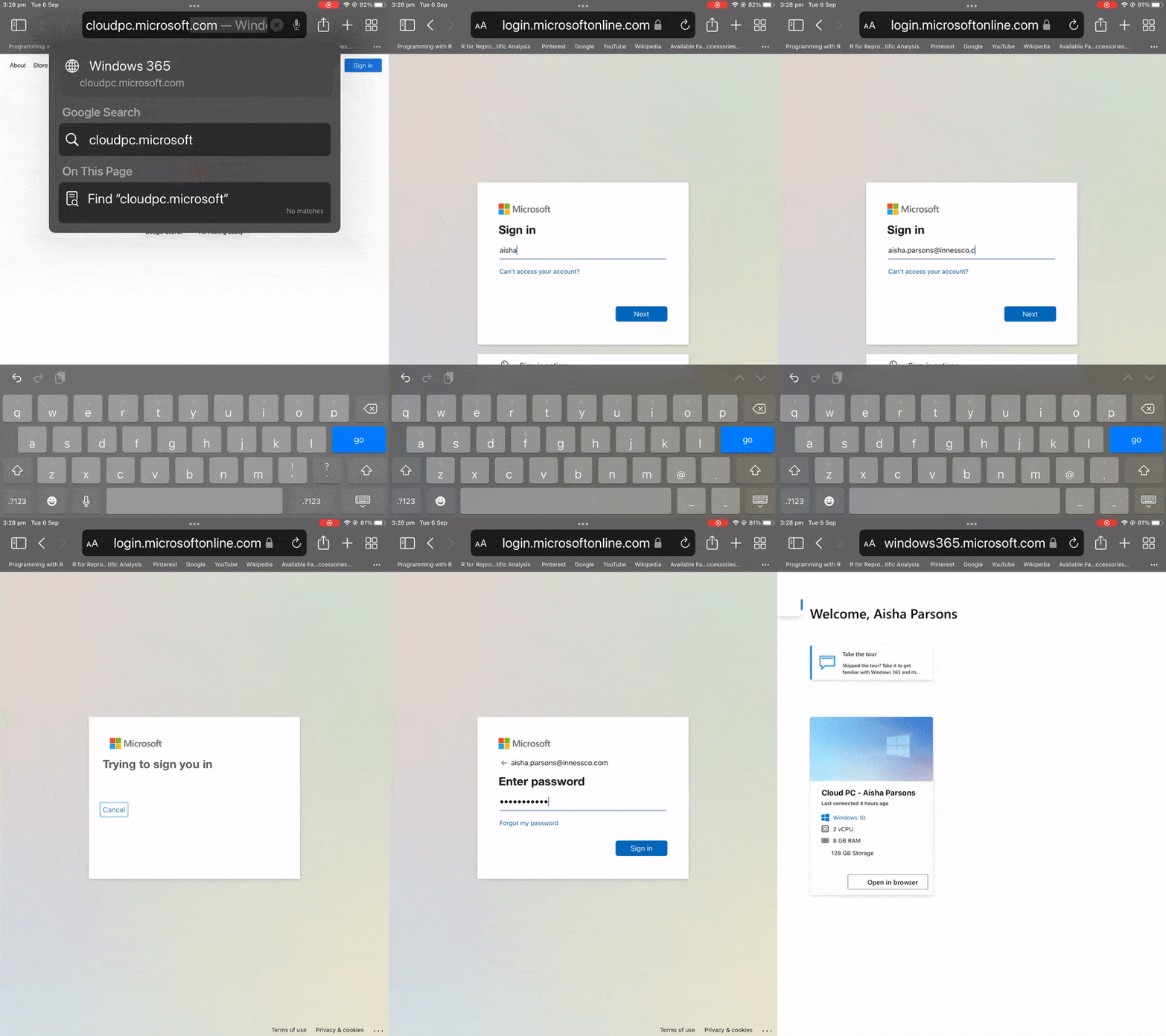
Open your browser on the iPad, type "cloudpc.microsoft.com" in the address bar (at the top). Click enter.
Step 2.
The Microsoft sign in page will show. Enter your email and password.
Step 3.
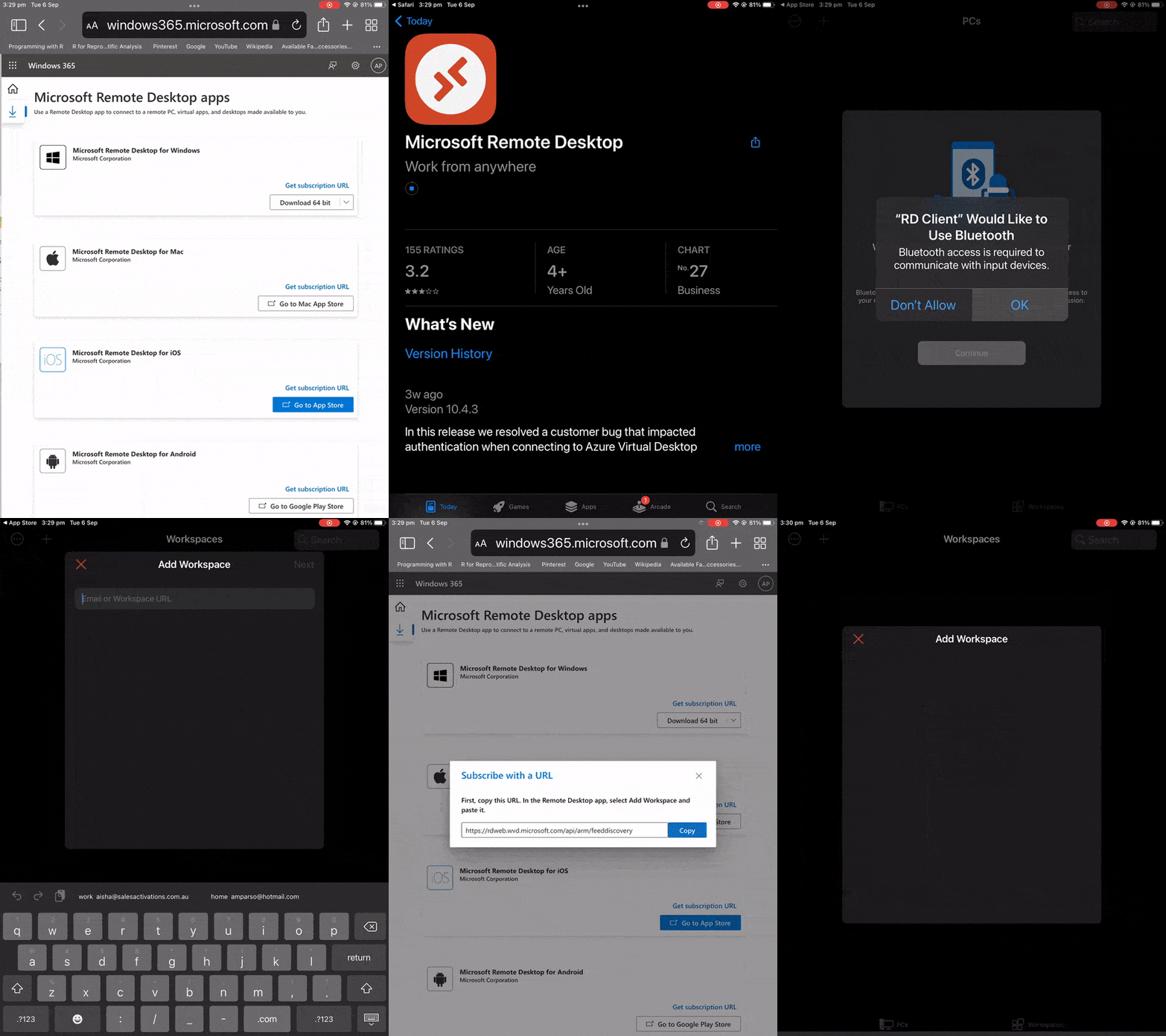
You will be redirected to your Windows 365 page. You can open the Cloud PC in the browser, however if you click on the download symbol (down arrow below the Home menu item in top left section of page), you will be directed to the "Microsoft Remote Deskop Apps" page.
Step 4.
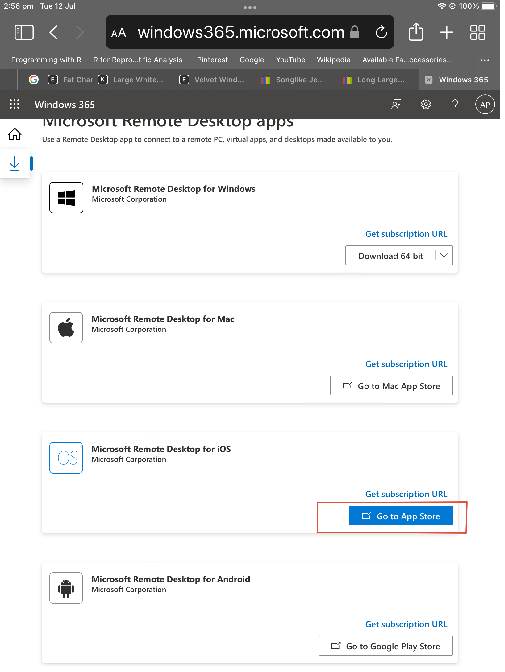
Choose the "Microsoft Remote Desktop for iOS" button and download the app.
Step 5.
Once the Remote Desktop app is downloaded navigate to the upper left side and click the plus symbol. Choose "Add Workspace".
Step 6.
Go back to your browser and choose "Get subscription URL" copy the address, paste into your app and choose 'Next'.
Step 7.
You will redirected to a Microsoft sign in page. Once you sign in again, your Cloud PC will be configured in the app.
Step 8.
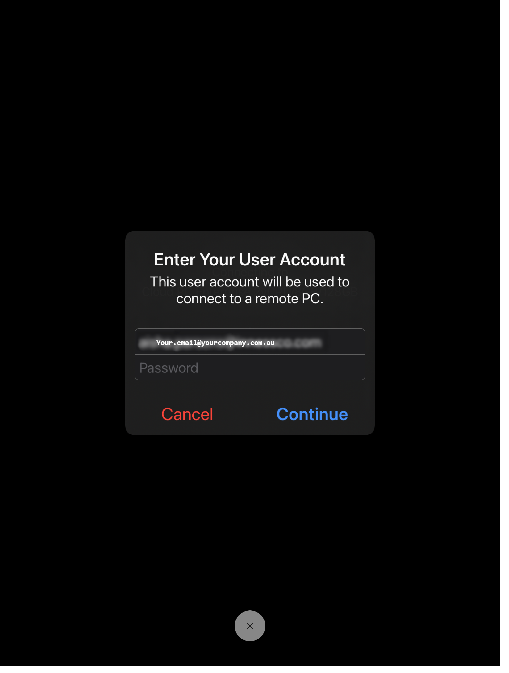
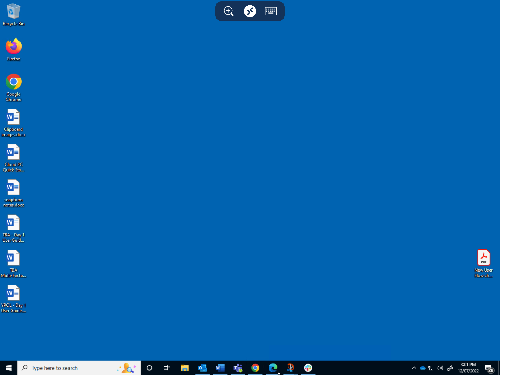
Click the Cloud PC icon. You will be requested to sign in again. You will now be able to access your Cloud PC.
Recorded Example
Part 1.
Note: this video may automatically loop
Part 2.
Note: this video may automatically loop
Part 3.
Note: this video may automatically loop
Was this article helpful?
That’s Great!
Thank you for your feedback
Sorry! We couldn't be helpful
Thank you for your feedback
Feedback sent
We appreciate your effort and will try to fix the article