Cloud PC: Logon from Home Windows PC
Table of Contents
- Key Points
- Detailed Process
Key Points
Step 1.
Open a browser and navigate to the website "windows365.microsoft.com".
Step 2.
Sign in with your email and password.
If you have multiple Microsoft accounts choose ‘work or school account’.
Step 3.
You can now either open your Cloud PC in your browser or open / download the Windows App application.
Step 4.
If downloading the Windows App application, click "Go to Microsoft Store" and install the app from the Microsoft Store.
If you run Zoom video conferences from within the Cloud PC, your Cloud PC should support it automatically. If you have any problems with Zoom, please contact our helpdesk at helpdesk@innessco.com
Detailed Process
This process is for Windows 10 and Windows 11 PCs only. Please see seperate instructions for Mac users.
Step 1.
Open a browser and type "windows.cloud.microsoft.com".

Step 2.
Sign in with your email and password.
If you have multiple Microsoft accounts choose ‘work or school account’.

Step 3.
From this page, you can either open your Cloud PC in the browser by clicking "Connect with > Browser" or
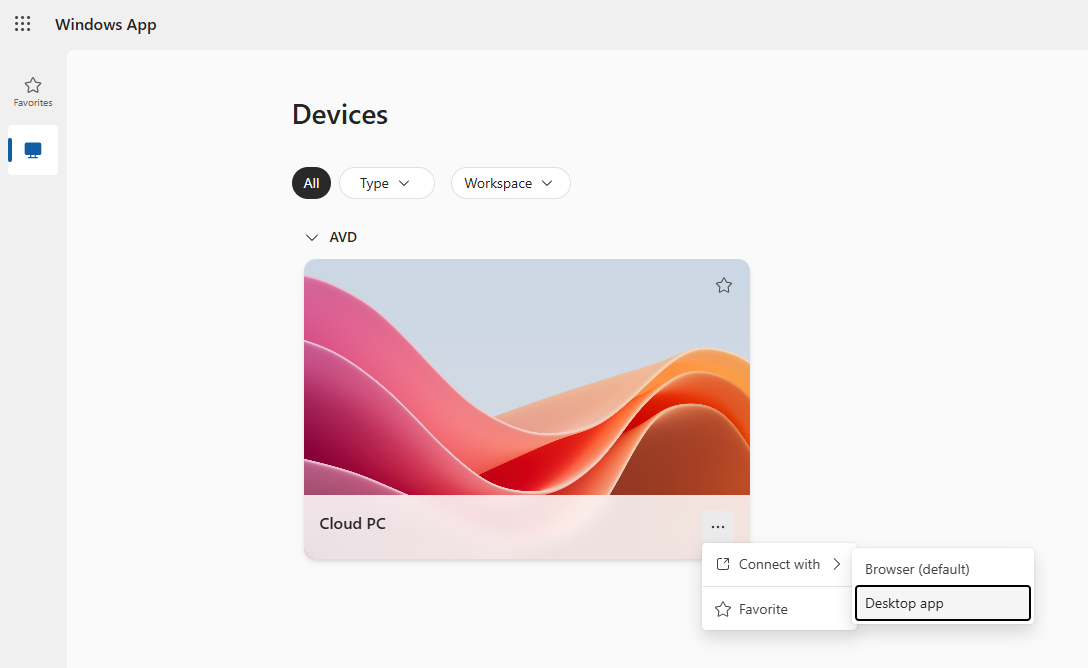
click on Connect with > Desktop app to open it in Windows App. If you do not have Windows App, you will be prompted to download it.
Step 4.
Click "Go to Microsoft Store" and install the app from the Microsoft Store.
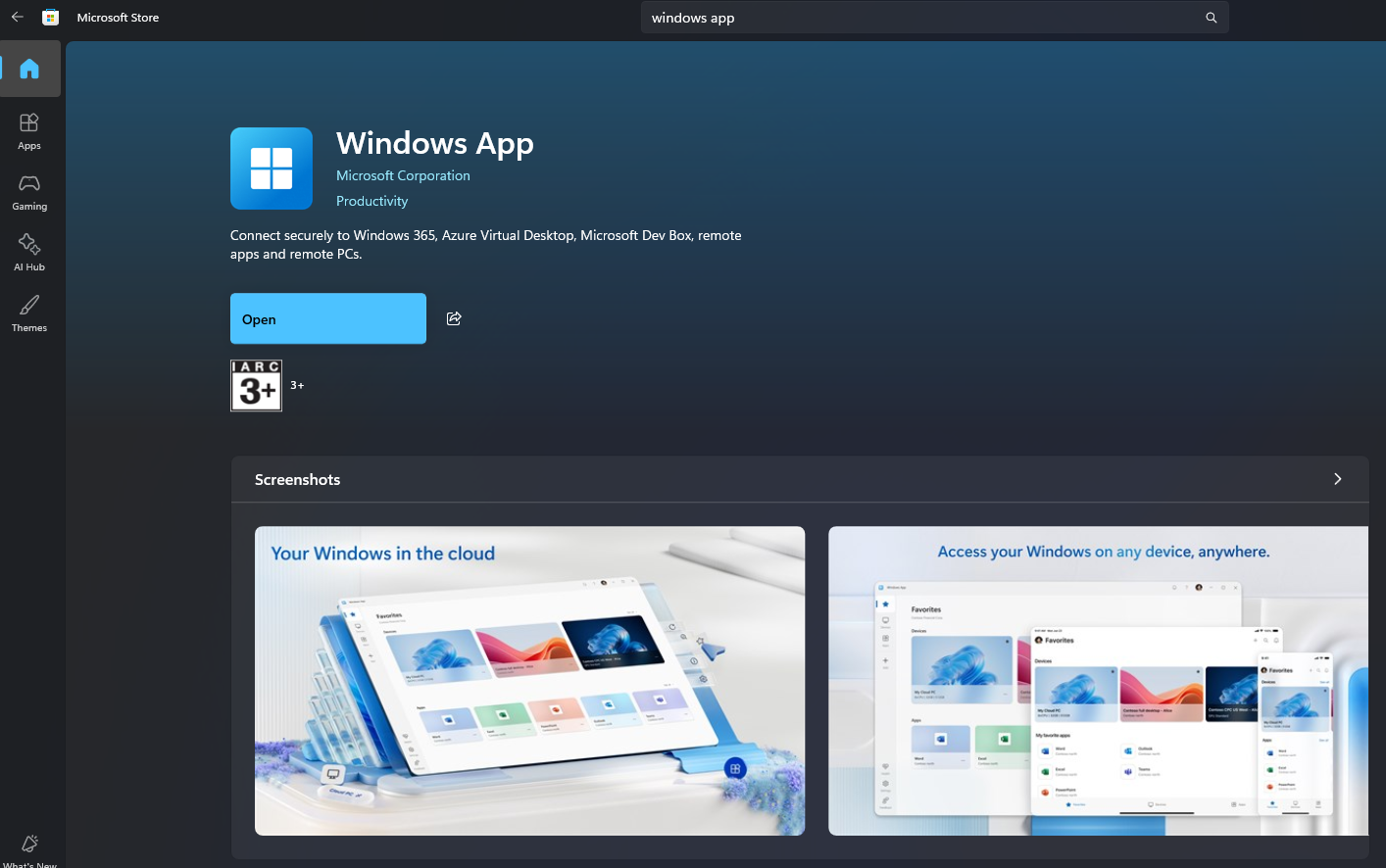
Step 5.
Was this article helpful?
That’s Great!
Thank you for your feedback
Sorry! We couldn't be helpful
Thank you for your feedback
Feedback sent
We appreciate your effort and will try to fix the article