Cloud PC: Free Up Space in OneDrive
Process
Step 1.
Open your Start Menu
(Windows icon on the bottom-left of your screen, or use the shortcut Ctrl + Esc)
Step 2.
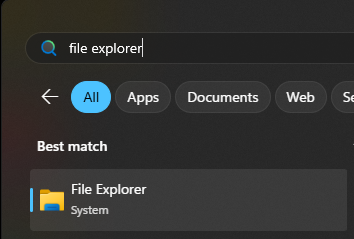
Search "File Explorer"
Step 3.
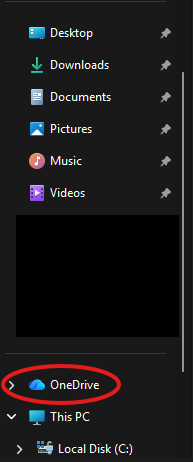
Navigate to and open up OneDrive
Step 3.
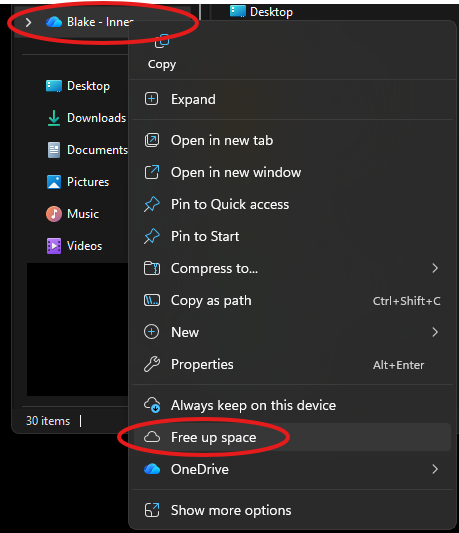
Right-Click and select "Free up space"
Note 1: This will NOT delete items from your OneDrive. It will only delete the locally-saved copies from your Cloud PC. If you need to access them again later, OneDrive will redownload them to your device.
Note 2: This process can take a while. We recommend running it just before a lunch break, or at the end of day.
Was this article helpful?
That’s Great!
Thank you for your feedback
Sorry! We couldn't be helpful
Thank you for your feedback
Feedback sent
We appreciate your effort and will try to fix the article