Net Documents: First Login Activation Tasks
Table of Contents
- Signing In to ndOffice
- Enabling The Net Documents Browser Plugin
- Signing In To Net Documents Outlook add-in
Signing In to ndOffice
- Log into the Cloud PC and allow 2-3 minutes for all system applications to load.
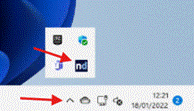
- Once loaded, open ndOffice from the system tray.
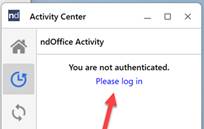
- Click the “Please log in” link which will open NetDocuments in your browser.
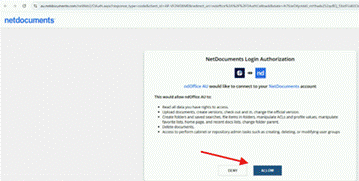
- Click Allow and follow the prompts to activate Net Documents.
Enabling The Net Documents Browser Plugin
- Open Google Chrome and navigate to Extensions.
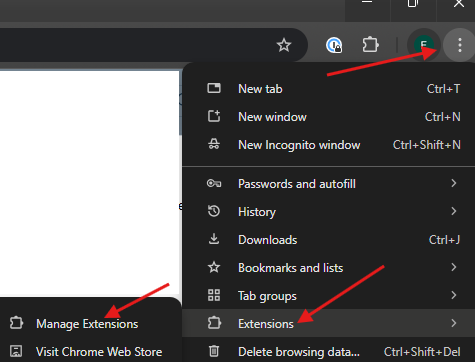
- Ensure that the NetDocuments extension is enabled.
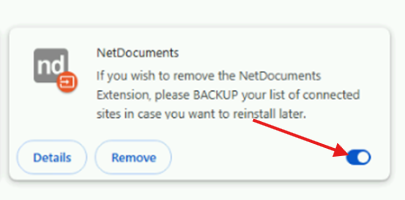
- Open the details page for the NetDocuments extension
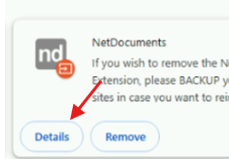
- Navigate to Extension Options then change the host to AU (au.netdocuments.com) then close the window.
Signing In to Neto Document Outlook add-in
- From the Outlook toolbar click on the NetDocuments icon to open the NetDocs pane.
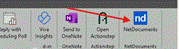
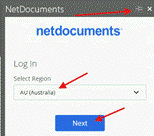
- Once the NetDocs pane is open, click the Pin button to keep it there, then set the region to AU and click Next
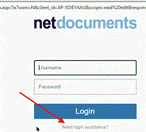
- On the login page, click Need login assistance
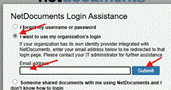
- Select Use my organization’s login then enter your email address and click Submit
- You will be prompted to log in with your Microsoft account and approve an MFA prompt and then NetDocs will load.
Was this article helpful?
That’s Great!
Thank you for your feedback
Sorry! We couldn't be helpful
Thank you for your feedback
Feedback sent
We appreciate your effort and will try to fix the article