Setting Up Multifactor Authentication
Before a user logs into their PC, we recommend that they first log into their Microsoft account on a colleagues PC in order to ensure that MFA (Multifactor Authentication) has been setup. Follow these steps to set up MFA using Microsoft Authenticator:
- Install Microsoft Authenticator App. Before proceeding with the setup, ensure you have the Microsoft Authenticator app installed on your mobile device. It's available on both the Apple App Store and Google Play Store. The following is the app icon that you are searching for.

- Initial Setup: From any firm-owned PC, open an InPrivate or Incognito window in Chrome or Edge and go to (https://myaccount.microsoft.com/). Sign in using your email address and password. After signing in, you’ll be prompted to set up additional security information, which will begin the MFA setup process.
Select Authentication Method: During the MFA setup, if prompted, select 'Use an authentication app' as your verification method.
Set Up Microsoft Authenticator: Launch the Microsoft Authenticator app on your mobile device. In the app, select 'Add Account' and choose 'Work or school account'. Use the app to scan the QR code displayed on your colleague's PC screen. This will link your Microsoft account to the Authenticator app.

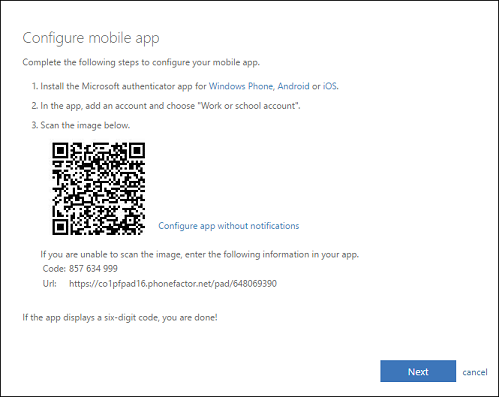
Verify Authentication: Once the QR code is scanned, a test notification will be sent to the Authenticator app. Approve this notification to confirm the setup.
Complete the Setup: The website should now confirm that your Microsoft Authenticator setup is complete. Remember to close the InPrivate or Incognito session after completion.
- Future Logins: When signing in to your Microsoft account on a new computer or from a new location, you'll be prompted to verify your identity using the Microsoft Authenticator app. When the prompt appears on your computer, open the Authenticator app on your mobile device and approve the login request by entering the code shown on your computer screen.
Was this article helpful?
That’s Great!
Thank you for your feedback
Sorry! We couldn't be helpful
Thank you for your feedback
Feedback sent
We appreciate your effort and will try to fix the article