Microsoft Teams Meeting Recording, Transcription and AI Summary
These instructions explain how to:
- Record a Microsoft Teams meeting.
- Access and download the meeting transcript.
- Use Microsoft 365 Copilot Chat to create an AI-generated meeting summary.
These instructions are suitable for users with a Microsoft 365 Business Premium licence.
1. Start the Teams meeting
Start or join the Microsoft Teams meeting normally.
2. Start recording the meeting
Once the meeting has started:
- In the Teams meeting controls, select More actions (…).
- Select Record and transcribe.
- Select Start recording.
- Select Confirm if prompted.
Teams will notify meeting participants that recording has started.
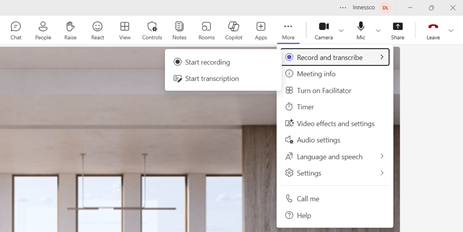
Transcription
When recording starts, Teams also starts the meeting transcription automatically.
You can display the live transcript during the meeting by selecting:
More actions (…) → Record and transcribe → Show transcript
The transcript displays the conversation as it occurs, including speaker names and timestamps where available.
3. Stop the recording
At the end of the meeting:
- Select More actions (…).
- Select Record and transcribe.
- Select Stop recording.
- Confirm if prompted.
Stopping the recording also stops the live transcription.
Teams then processes the recording and transcript. This can take a few minutes depending on the length of the meeting.
For a standard meeting, the recording and transcript are stored in the OneDrive for Business account of the organiser, and are also made available through the meeting's details in Teams.
4. View and download the transcript
After the meeting has finished:
- Open Microsoft Teams.
- Select Chat.
- Open the chat for the completed meeting.
- Select Recap.
- Select Transcript.
The transcript lets you review what was said during the meeting without watching the full recording.
You can use it to locate:
- Specific discussions
- Decisions
- Questions
- Commitments
- Action items
- Comments made by individual participants
Download the transcript
From the Transcript section:
- Select the Download option or the dropdown arrow beside it.
- Choose the required file format. The recommended format is Word (.docx)
5. Create an AI summary using Microsoft 365 Copilot Chat
With Microsoft 365 Business Premium, you can use Microsoft 365 Copilot Chat to analyse a transcript that you upload.
Without an additional Microsoft 365 Copilot licence, Copilot Chat does not automatically analyse all of your organisational meetings and content. Instead, you explicitly provide the transcript to Copilot Chat.
Open Microsoft 365 Copilot Chat
- Open the Microsoft 365 Copilot app in your browser via the URL https://office.com.
- Sign in with your Microsoft 365 Business Premium work account.
- Start a new chat.
- Select the + button or the option to add a file.
- Upload the meeting transcript downloaded from Teams.
- Enter a prompt asking Copilot to analyse the transcript, prepare meeting minutes, identify action items, etc.
6. Business Premium versus Microsoft 365 Copilot / Teams Premium
It is useful to distinguish between the functionality available with Microsoft 365 Business Premium and the additional AI capabilities available with other licences.
Microsoft 365 Business Premium
With Business Premium, you can:
- Record Teams meetings.
- Create Teams transcripts.
- Access the recording after the meeting.
- View and download the transcript.
- Use Microsoft 365 Copilot Chat.
- Upload the transcript to Copilot Chat.
- Ask Copilot Chat to summarise the transcript and identify decisions and actions.
This workflow requires the user to explicitly provide the transcript to Copilot Chat.
Teams Premium or Microsoft 365 Copilot
Additional licences provide more tightly integrated AI meeting functionality.
Depending on the licence and configuration, Teams can provide features such as:
- AI-generated meeting summaries
- Suggested tasks
- Meeting topics and chapters
- Speaker information
- Timeline markers
- Copilot questions directly against the meeting content
These features are more integrated into the Teams Recap experience and do not require the same manual transcript-download-and-upload process.
Was this article helpful?
That’s Great!
Thank you for your feedback
Sorry! We couldn't be helpful
Thank you for your feedback
Feedback sent
We appreciate your effort and will try to fix the article