Install Empower
Table of Contents
- Key Points
- Detailed Process
- Recorded Example
Key Points
Make sure Lexis Affinity and Outlook are closed.
Step 1.
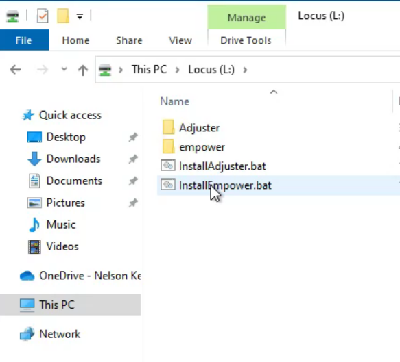
Go to File Explorer, then L Drive and find InstallEmpower.bat, double click that to run.
It will copy some files to your local PC, then begin the installer.
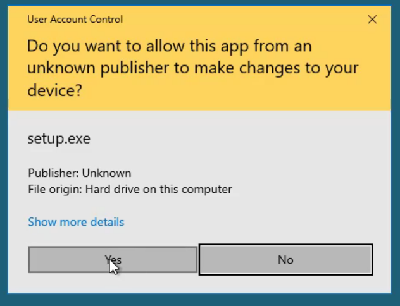
Click yes, next and yes.
Step 2.
You will get a warning message that the C:\Temp\ folder is incorrect.
The folder needs to be changed to L:\Empower.
Once changed click OK, Next, Next, Next, Next, Next, Install then Finish
Click Next, Next, Install, Finish.
Step 3.
Open Outlook, Affinity should open automatically. Open a Matter, go to the Empower tab, then select a precedent. Empower should now work.
Detailed Process
Step 1.
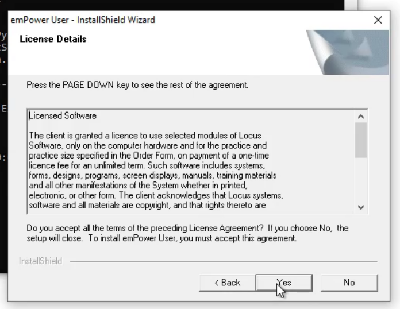
Go to File Explorer, then L Drive and find InstallEmpower.bat, double click that to run. It will copy some files to your local PC, then begin the installer.
Click yes.
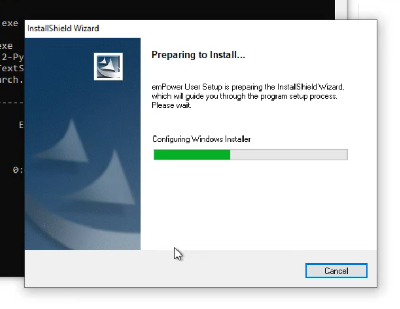
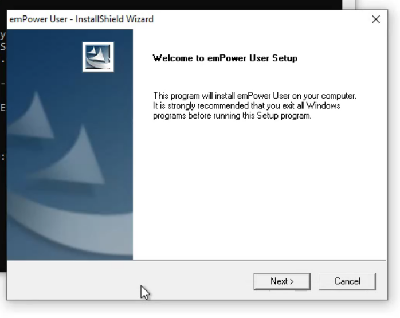
Click Next
Click Yes
Step 2.
You will get a warning message that the C:\Temp\ folder is incorrect.
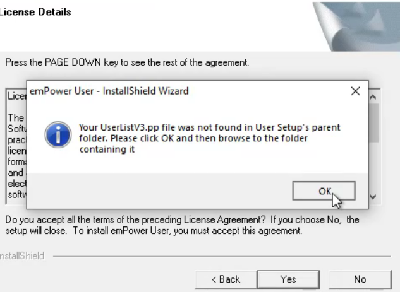
Choose browse to find the correct folder
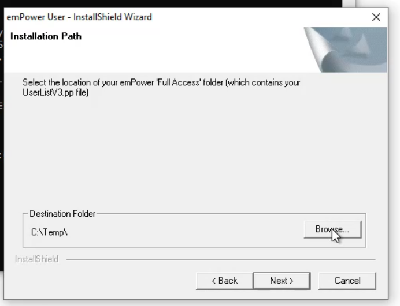
Delete C:\Temp
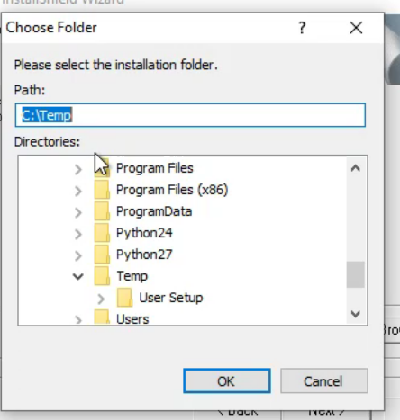
The folder needs to be changed to L:\Empower.
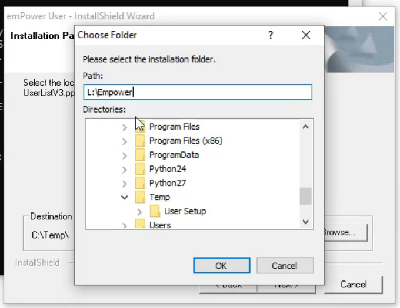
Click Next
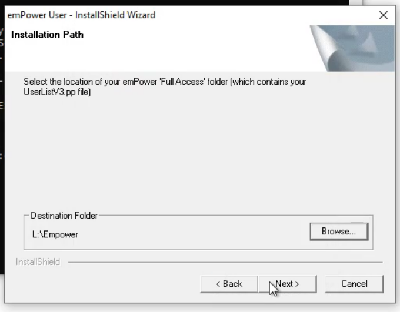
Click Next
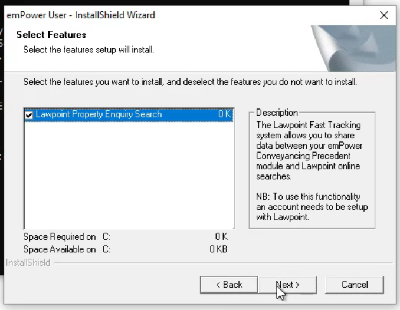
Click Next
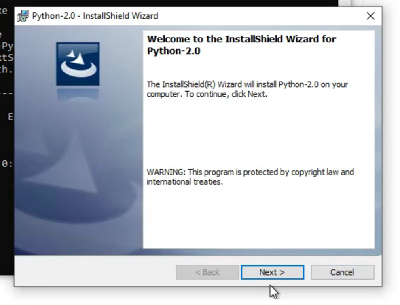
Click Next
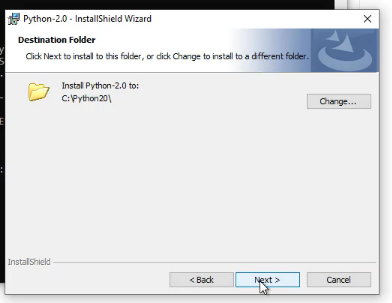
Click Next
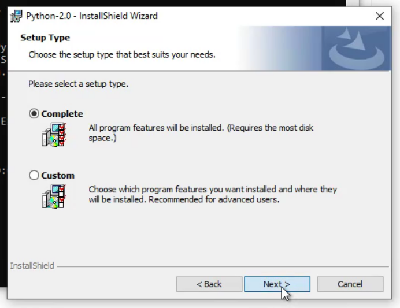
Click Install
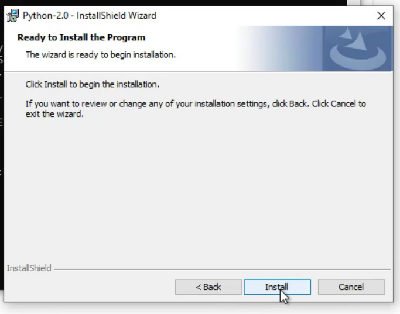
Click Finish
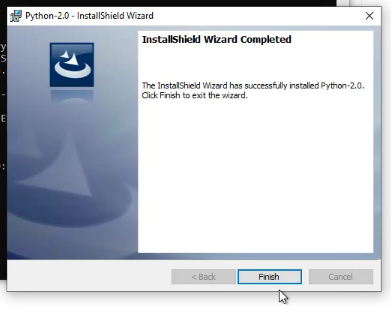
Click Next
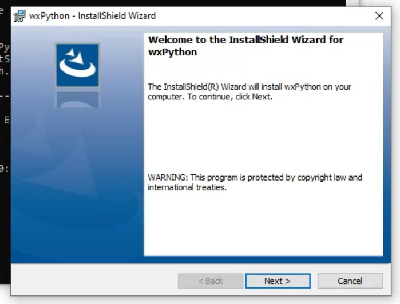
Click Next
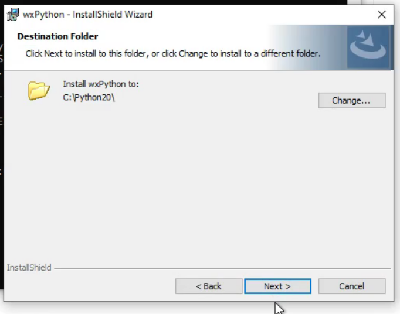
Click Install
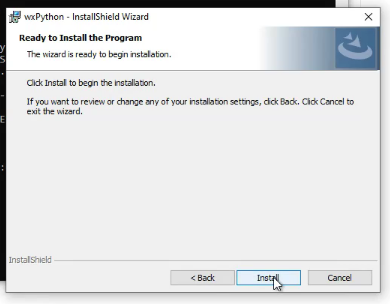
Click Finish
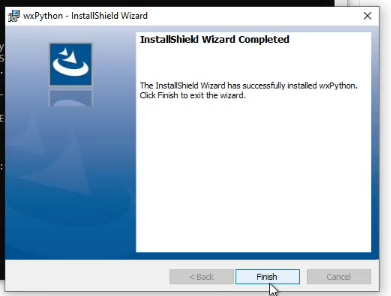
Step 3.
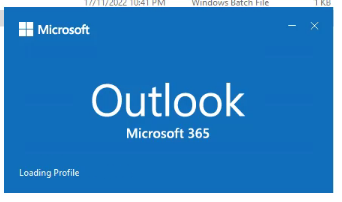
Open Outlook. Lexis should open automatically.
Open a matter.
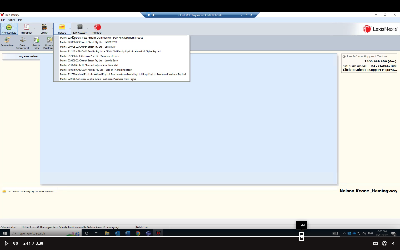
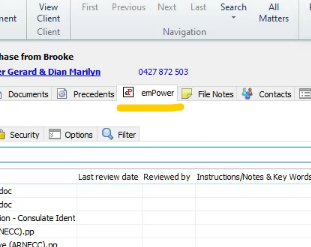
Go to the Empower tab and open a precedent
Empower should now work.
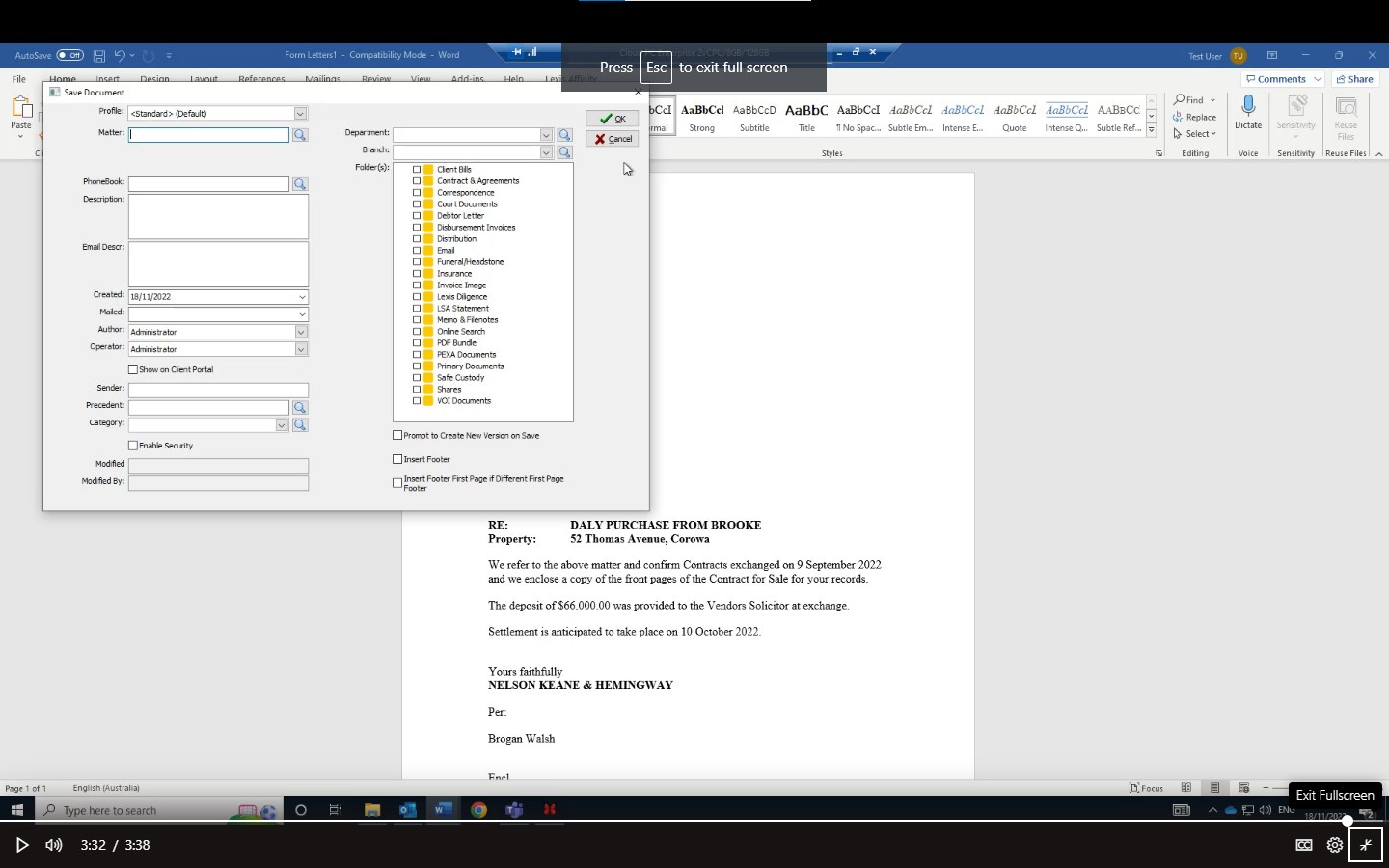
Recorded Example
Was this article helpful?
That’s Great!
Thank you for your feedback
Sorry! We couldn't be helpful
Thank you for your feedback
Feedback sent
We appreciate your effort and will try to fix the article