Cloud PC: Setting the Default Printer
Table of Contents
- Key Points
- Detailed Process
- Recorded Example
Key Points
Step 1.
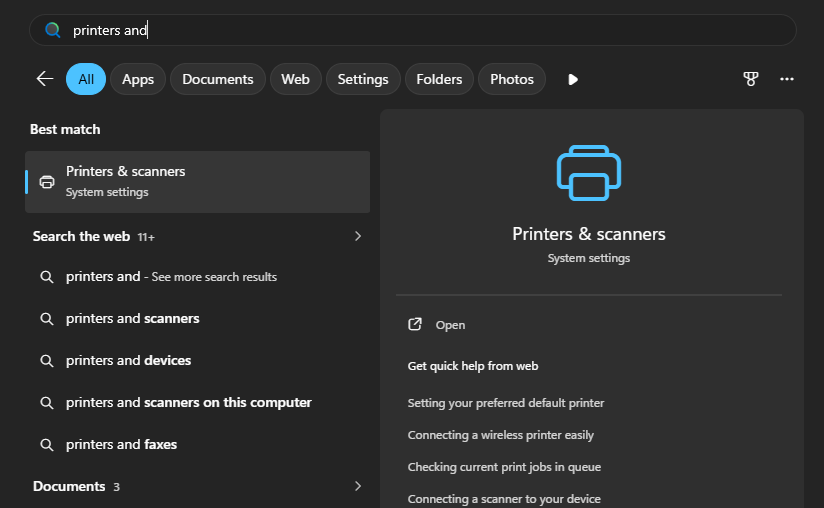
To set your default printer click the Windows button and search for “printers” and select “Printers & scanners”.
Step 2.
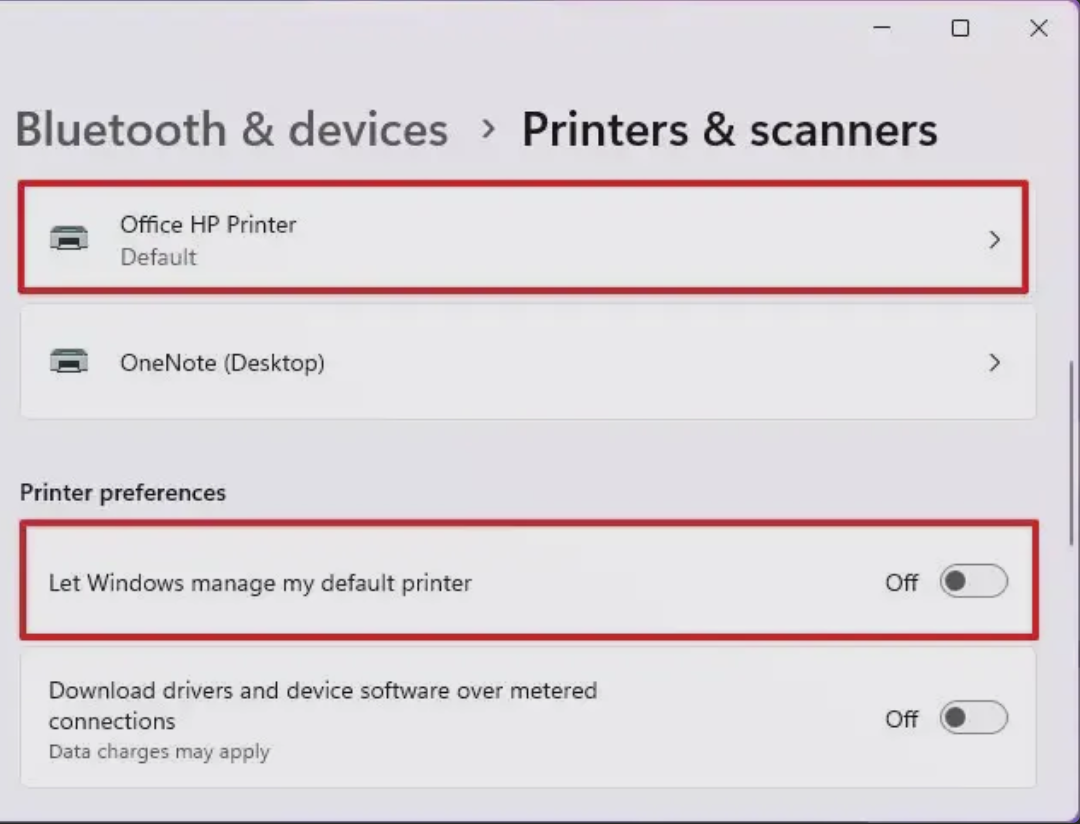
Switch off "Let Windows manage my default printer".
Step 3.
Click on your preferred default printer.
Step 4.
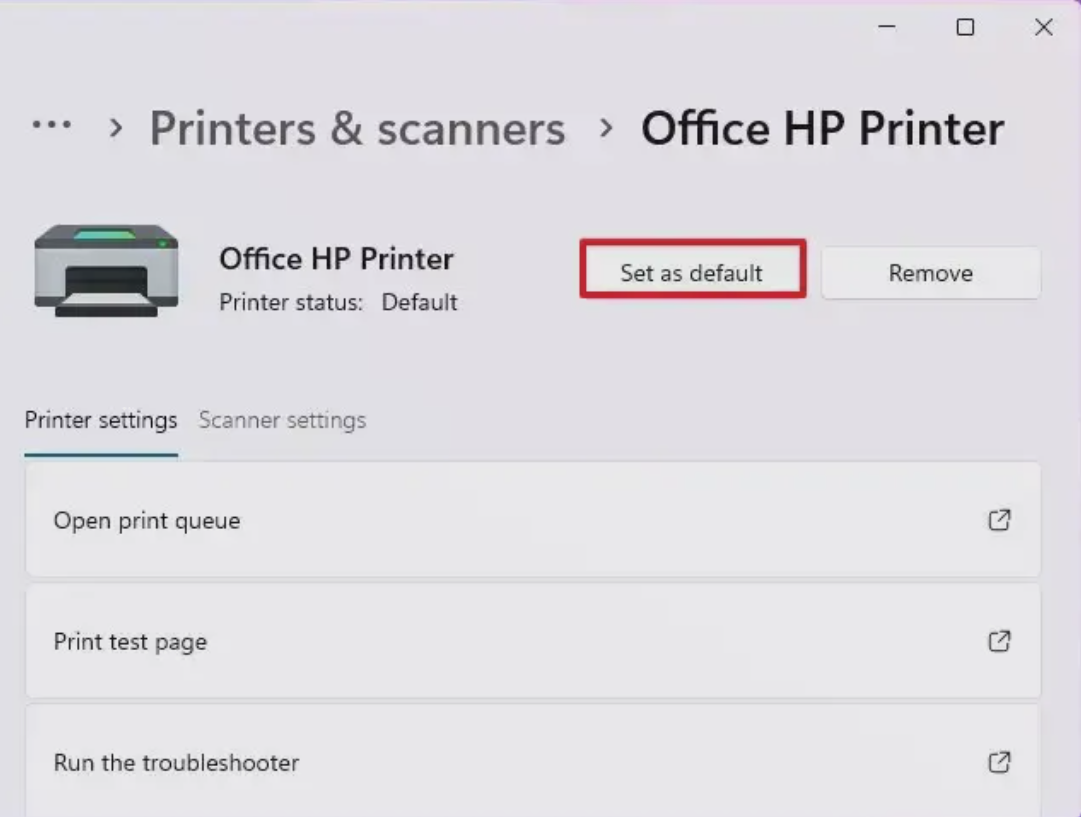
Click on "Set as default".
Detailed Process
Step 1.
To set your default printer click the Windows button and search for “printers”. Open "Printers & scanners"
Step 2.
Switch off the preference to "Let Windows manage my default printer" if it's on.
Then, click on the printer you would like to make default
Step 4.
Click on "Set as default".
Redirected Printers
Any printers installed on your Local PC are available from your Cloud PC. These printers are called redirected printers and are identified with the label “(redirected X)”.
When printing to a redirected printer, the print job will be sent from your Cloud PC to your Local PC and then from your Local PC to your printer.
For any printers without the “(redirected X)” label, the print job is sent directly from the Cloud PC to the printer. This enable you to be able to print to an office computer when outside the office.
Recorded Example
Note: this video may automatically loop

Was this article helpful?
That’s Great!
Thank you for your feedback
Sorry! We couldn't be helpful
Thank you for your feedback
Feedback sent
We appreciate your effort and will try to fix the article